Running a business means keeping track of a lot of numbers. You need to know how much money is coming in, how much is going out, and what you have in stock. Doing this on paper can be messy and confusing.
That is where Tally ERP 9 comes in.
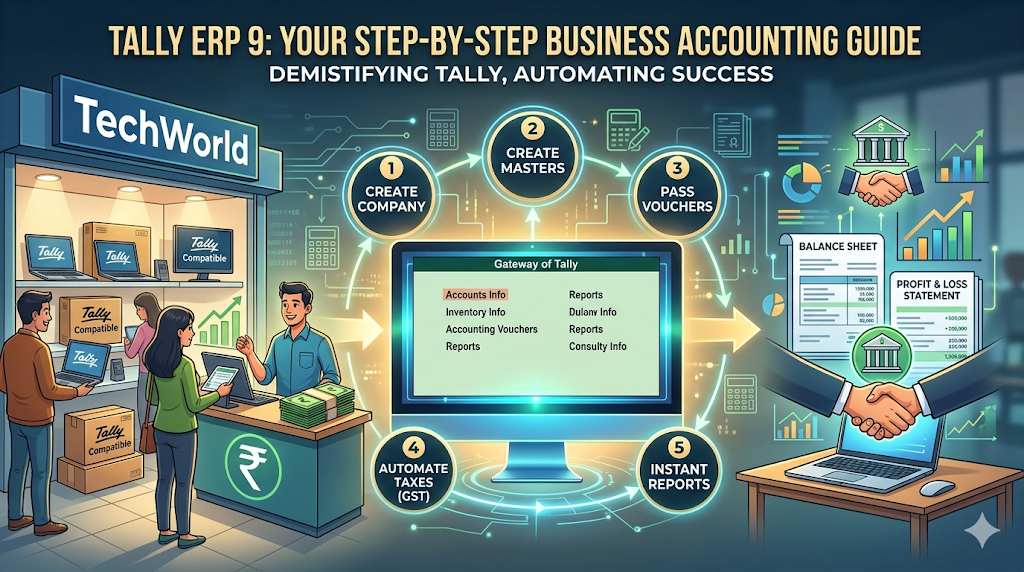
What is Tally ?
Think of Tally as a super-smart digital notebook for your business. Instead of writing things down in different books, you enter your daily activities into Tally, and it automatically does all the heavy lifting for you.
It helps you with:
- Accounting: Keeping track of your money.
- Inventory: Keeping track of your stock/products.
- Reports: Creating instant profit summaries and balance sheets without you having to do any math.
How to Use Tally: A Simple Step-by-Step Example
The best way to learn Tally is by seeing it in action. Let’s imagine you are starting a brand new electronics shop called “TechWorld”.
Here is what happens on your first day:
- You put ₹5,00,000 cash into the business to start it.
- You buy 10 Laptops for ₹30,000 each (Total: ₹3,00,000).
- You sell 2 Laptops to a customer for ₹40,000 each (Total: ₹80,000).
Here is exactly how you record this in Tally.
Step 1: Set Up Your Business (Create a Company)
First, you need to tell Tally about your new shop.
- Open Tally. On the main screen (called the Gateway of Tally), press Alt + F3.
- Click on Create Company.
- Type in your business name: TechWorld.
- Press Ctrl + A to save it.
Step 2: Create Account Folders (Ledgers)
Next, you need to create “folders” (called ledgers in Tally) to organize your money.
- Go to Accounts Info > Ledgers > Create.
- Create these three basic folders:
- Owner’s Capital: To track the money you invested.
- Purchase A/c: To track the things you buy.
- Sales A/c: To track the things you sell.
(Press Ctrl + A to save after making each one).
Step 3: Add Your Products (Inventory Masters)
Now, tell Tally what you are selling.
- Go to Inventory Info > Stock Items > Create.
- Type the name of the product: Laptop.
- Set the unit of measurement to “Numbers” (Nos).
- Save it.
Step 4: Record Your Daily Activities (Vouchers)
This is where you enter your actual daily work. Go to Accounting Vouchers on the main screen.
- Activity 1: Putting money into the business (₹5,00,000)
- Press F6 (Receipt). This tells Tally money is coming in.
- Select your Owner’s Capital folder and enter 5,00,000. Save.
- Activity 2: Buying the 10 Laptops
- Press F9 (Purchase). This tells Tally you are buying stock.
- Select your Purchase folder.
- Choose Laptop, type 10 for the quantity, and 30,000 for the price. Save.
- Activity 3: Selling 2 Laptops
- Press F8 (Sales). This tells Tally you are selling stock.
- Select your Sales folder.
- Choose Laptop, type 2 for the quantity, and 40,000 for the price. Save.
Step 5: See the Magic (Instant Reports)
Here is why Tally is so great. Because you did Step 4, Tally has already done all the math for you!
Go back to the main screen and check:
- Stock Summary: It will instantly show you have exactly 8 laptops left in your shop.
- Profit & Loss A/c: It will instantly calculate your profit from selling those two laptops.
- Balance Sheet: It will show you exactly how much cash you have left after buying the stock and making the sale.
And that is it! You just successfully managed a business using Tally ERP 9.